 An official website of the United States government




1.1 Training/Testing Set Validation Over a Single Run
1. Double click on ExP.bat
2. Click on Project and select Load Data
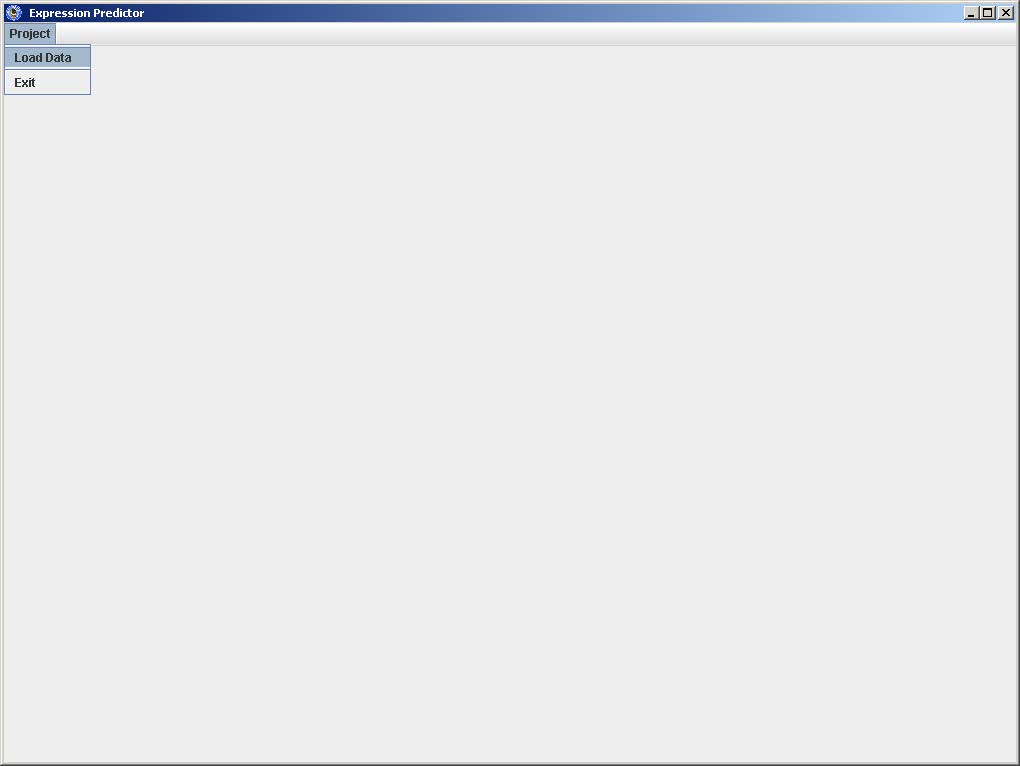
3. Select Input file
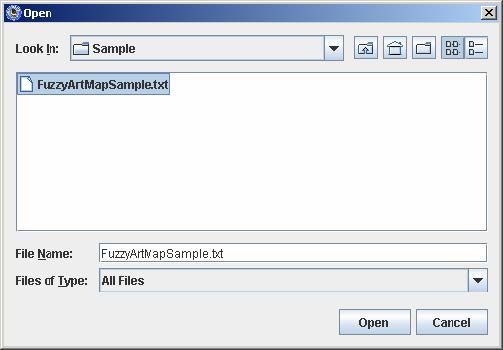
4. Click Open
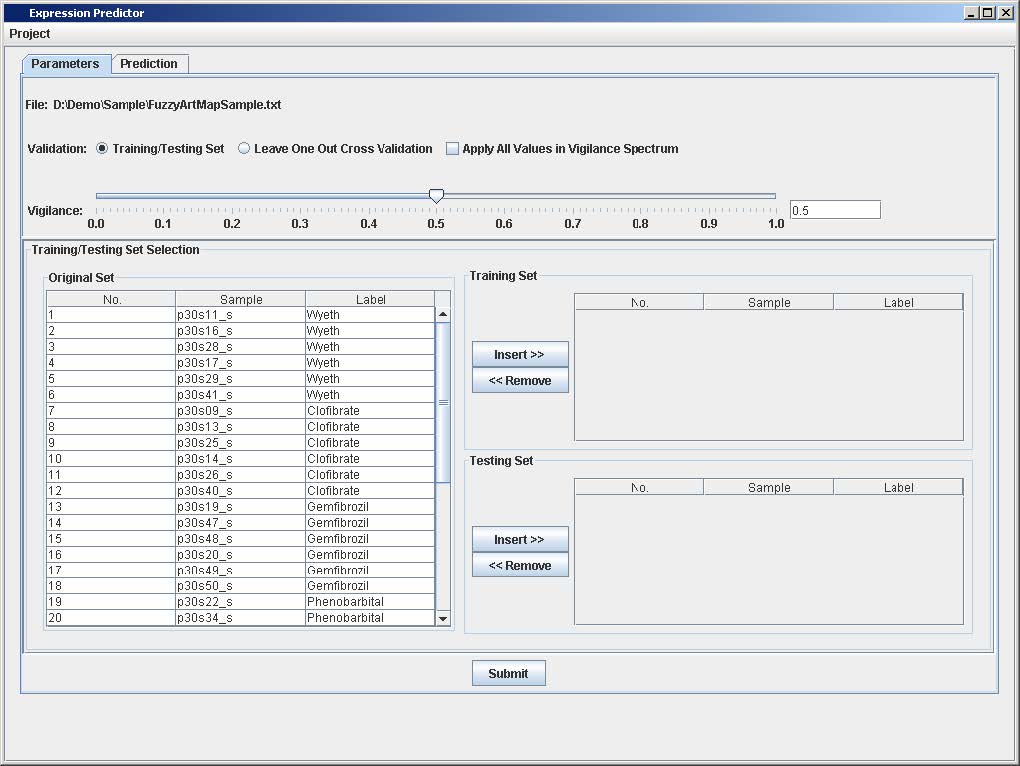
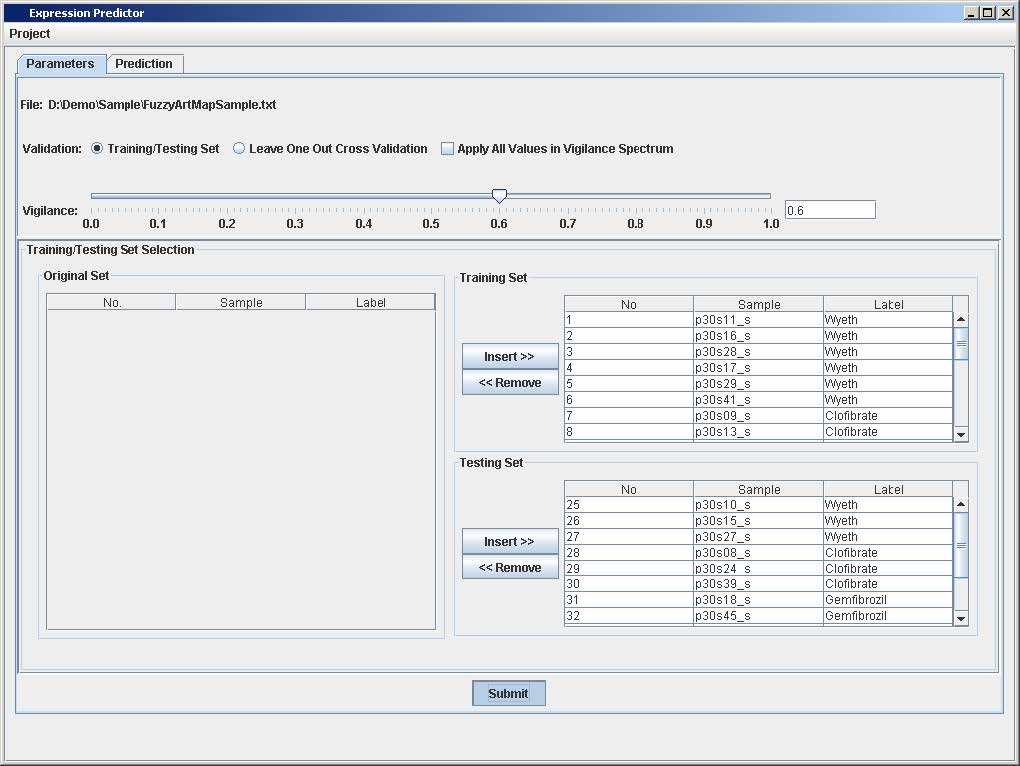
5. Select the Training Set
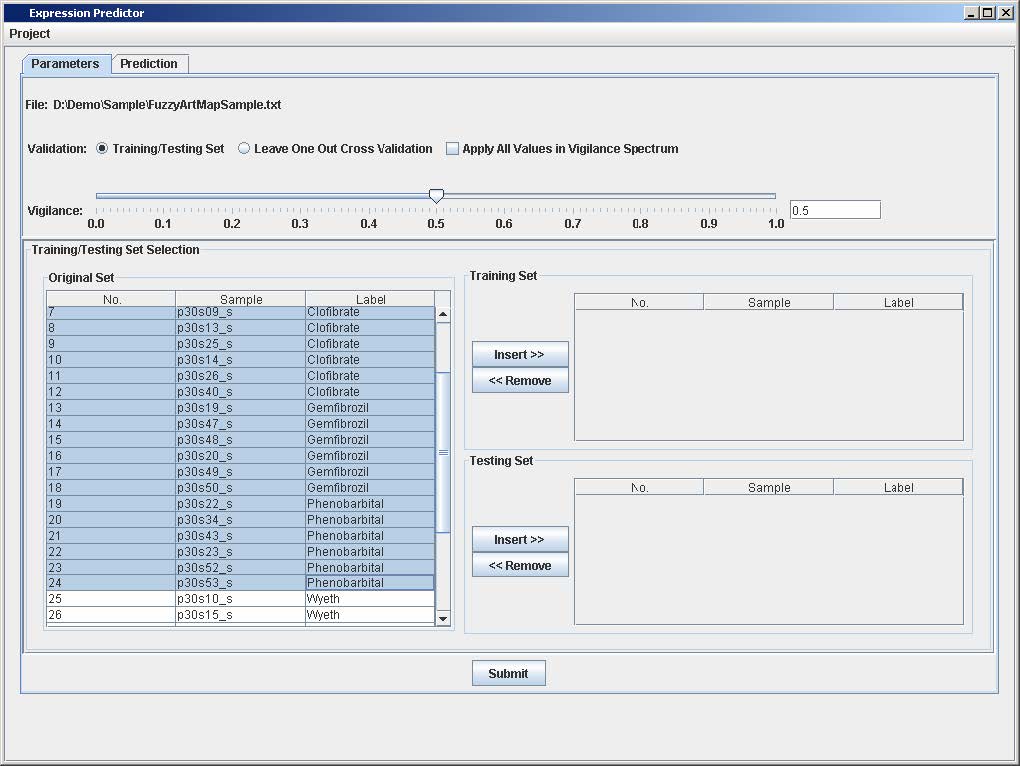
6. Click on the "Insert>>" button on the Training Set Panel
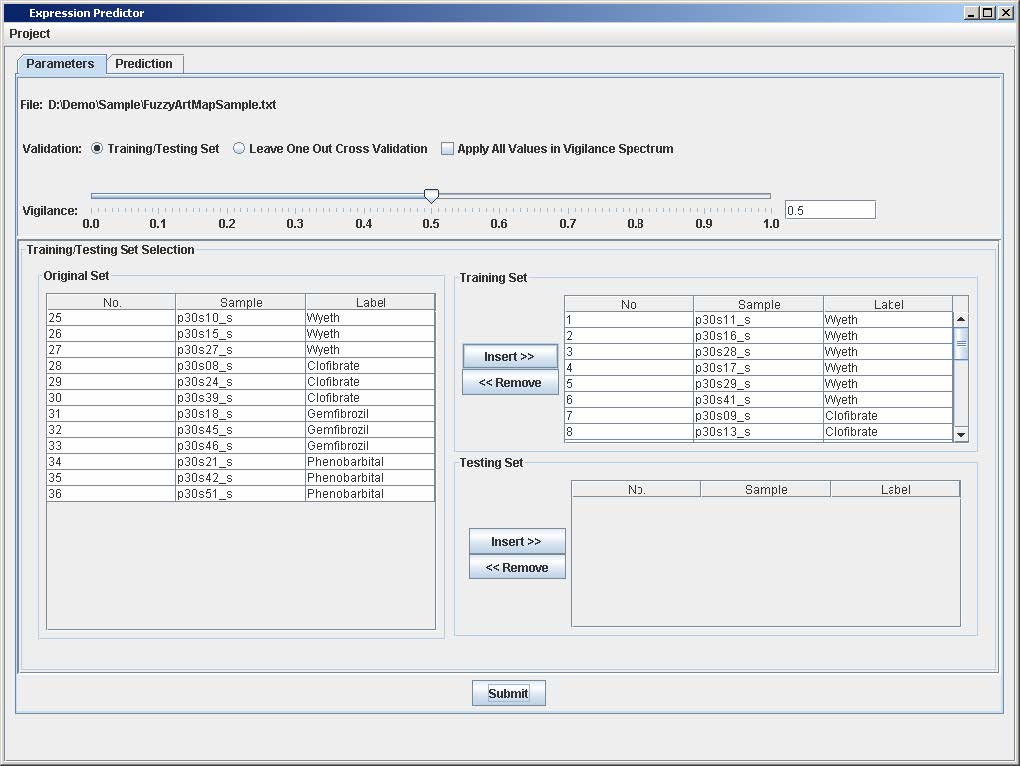
7. Select the Testing Set
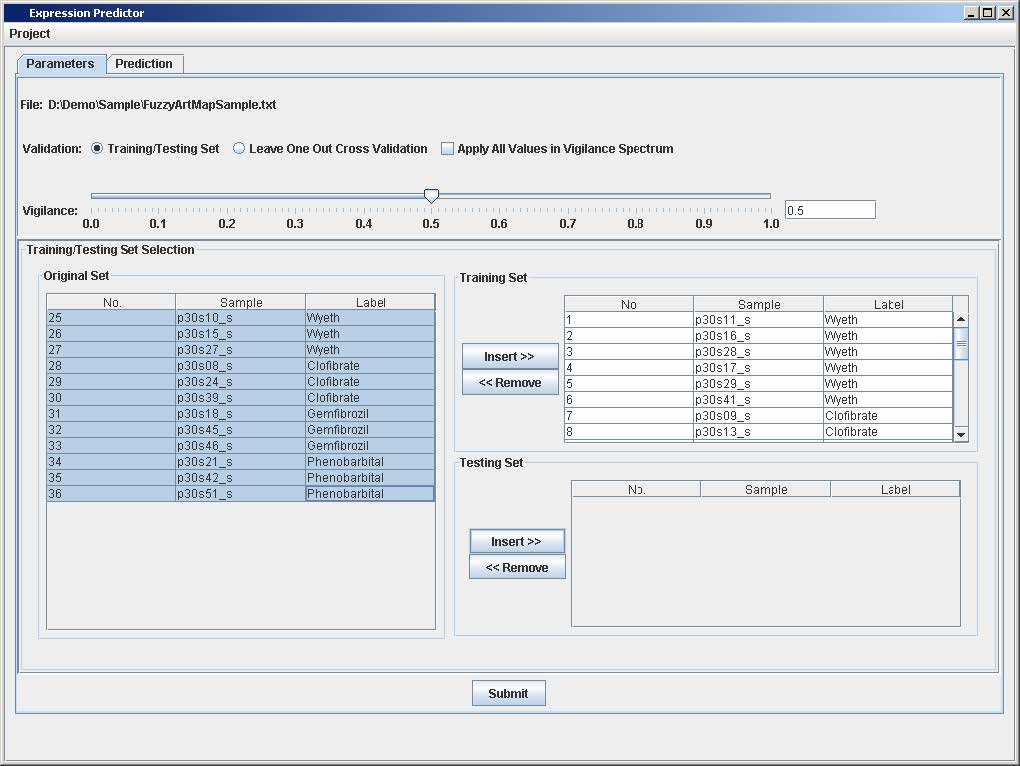
8. Click on the "Insert>>" button on the Testing Set Panel
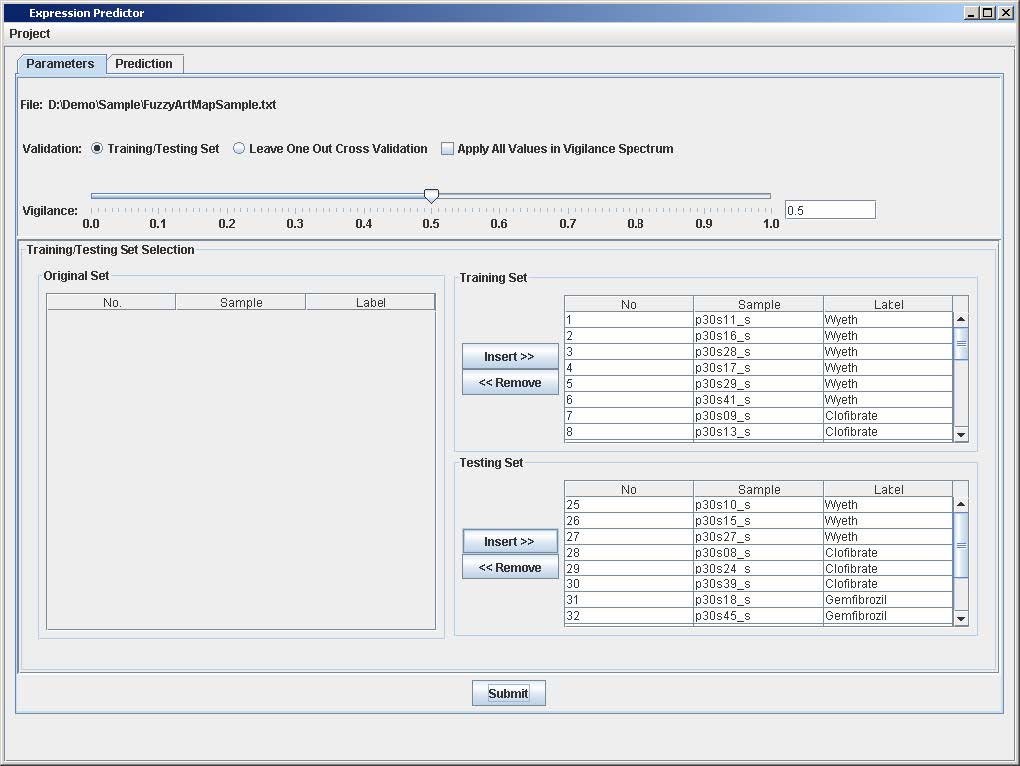
9. Select a vigilance value from the slider
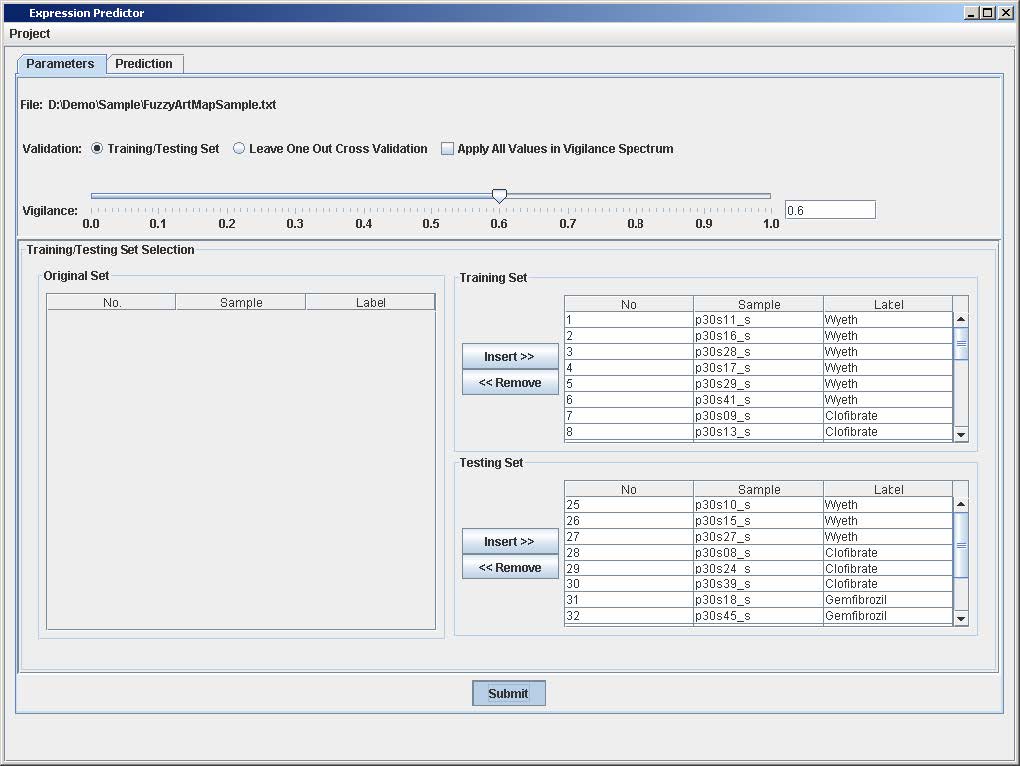
10. Click on the "Submit button
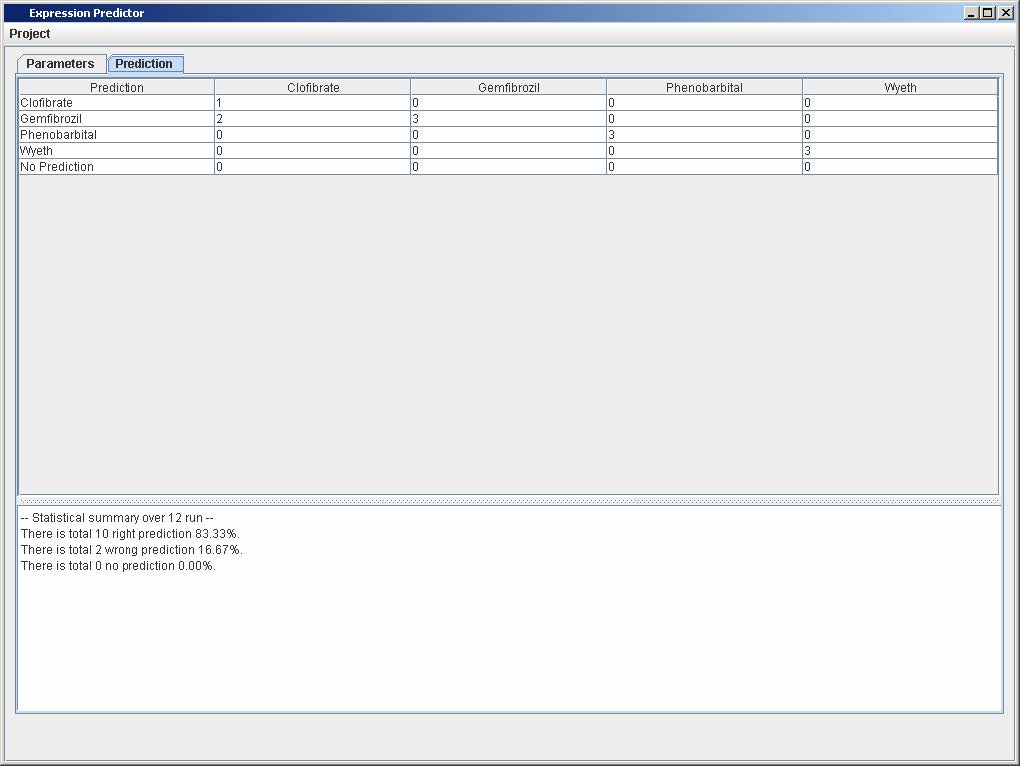
11. Click on the Prediction Tab to view the confusion matrix
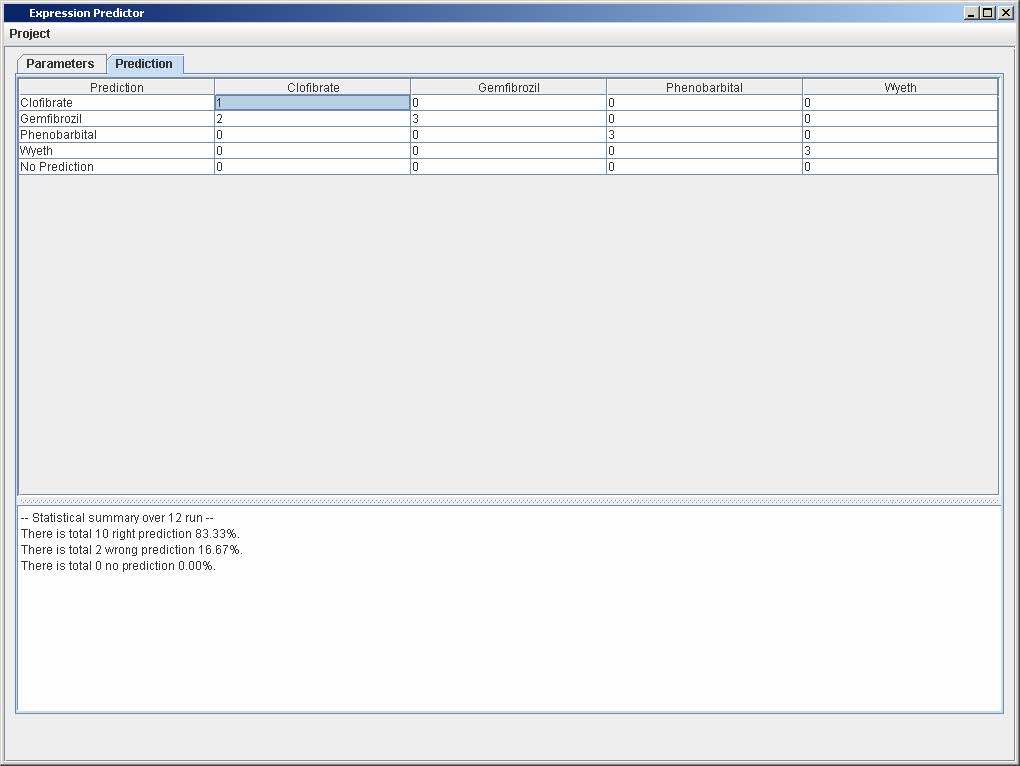
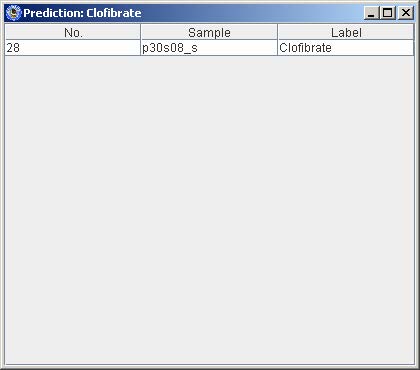
12. Click on one of the numbers in the confusion matrix to view the list of samples that corresponds the prediction in the selected cell from the matrix
1.2 Training/Testing Set Validation over the Entire Vigilance Spectrum
1. Repeat steps 1 to 8 from Section 1.1
2. Click on the checkbox that says "Apply All Values in Vigilance Spectrum"
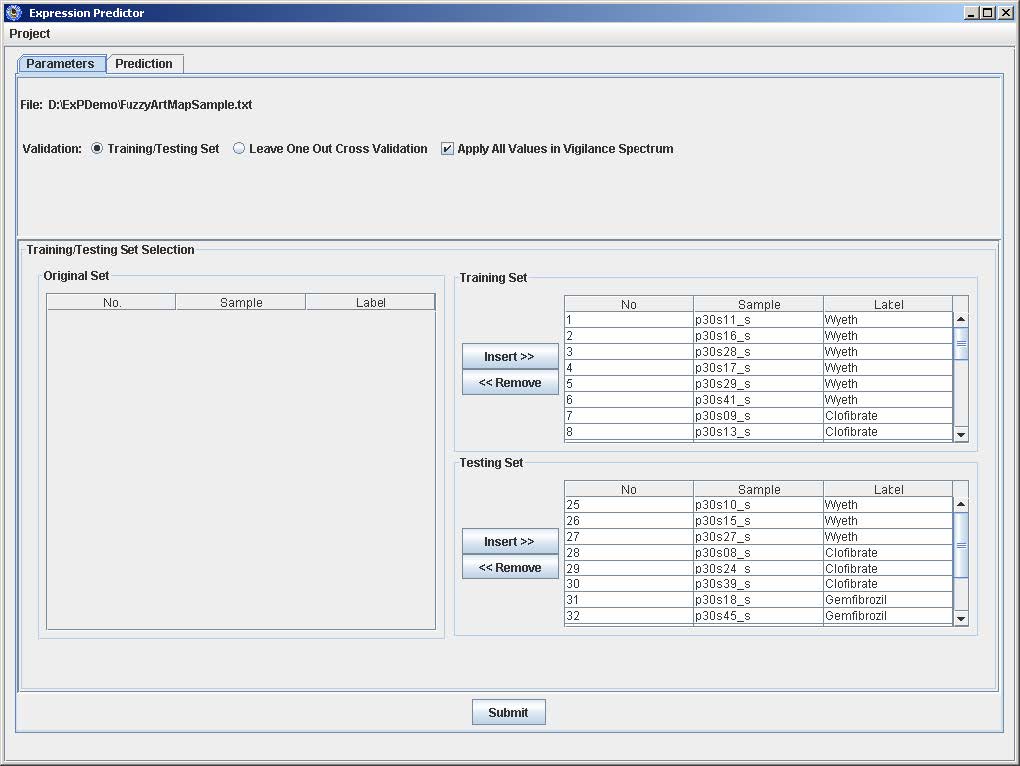
3. Repeat steps 10 from Section 1.1
4. Click on Prediction Tab to view the prediction results using vigilance values from 0 to 1 with 0.01 increment at each cycle
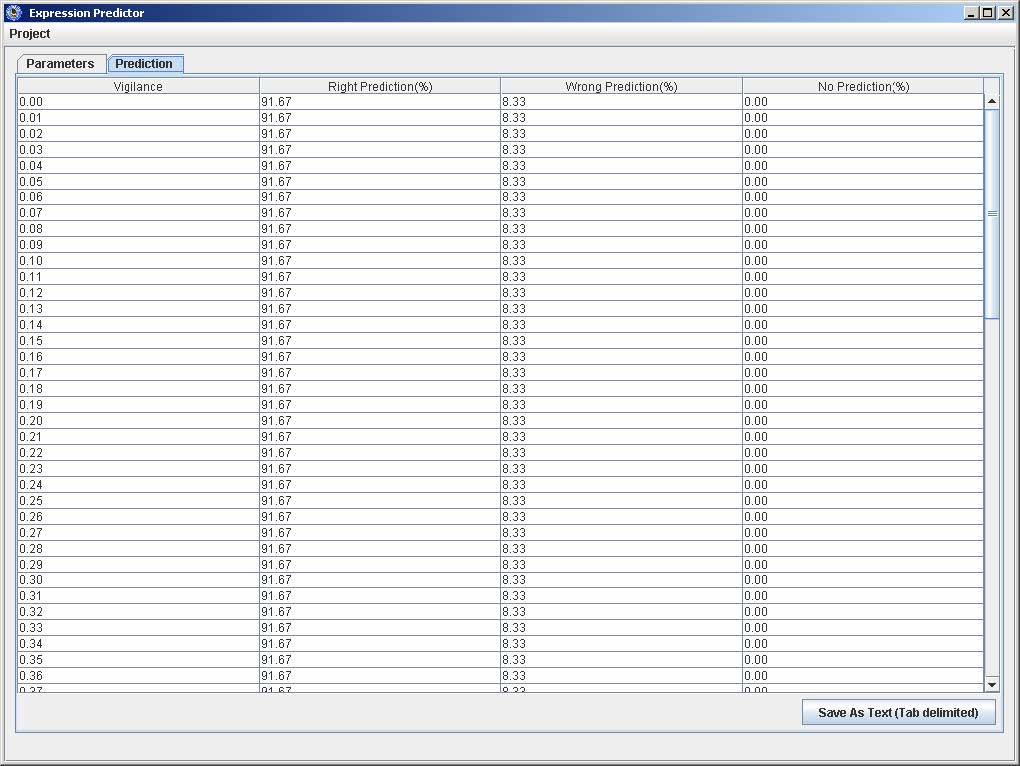
5. Click on "Save As Text (Tab delimited), enter the filename, and click Save.
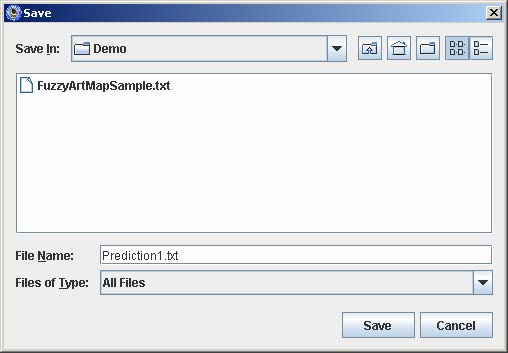
2.1 Leave One Out Cross Validation a Single Run
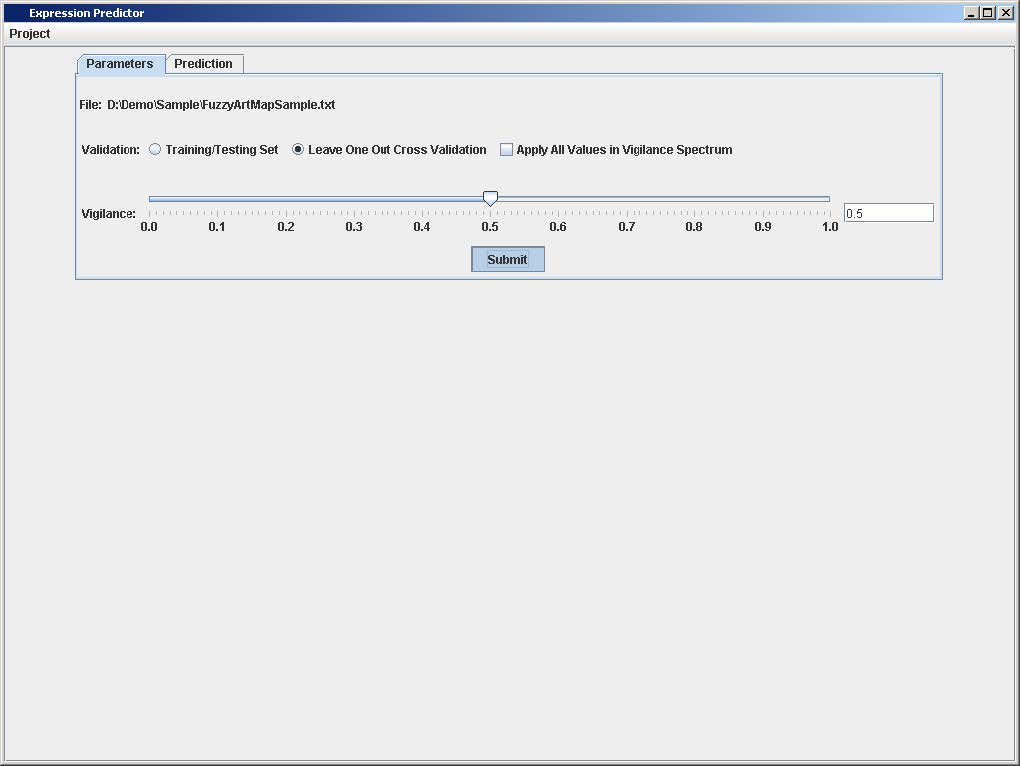
1. Repeat steps 1 to 4 from Section 1.1
2. Select Leave One Out Cross Validation
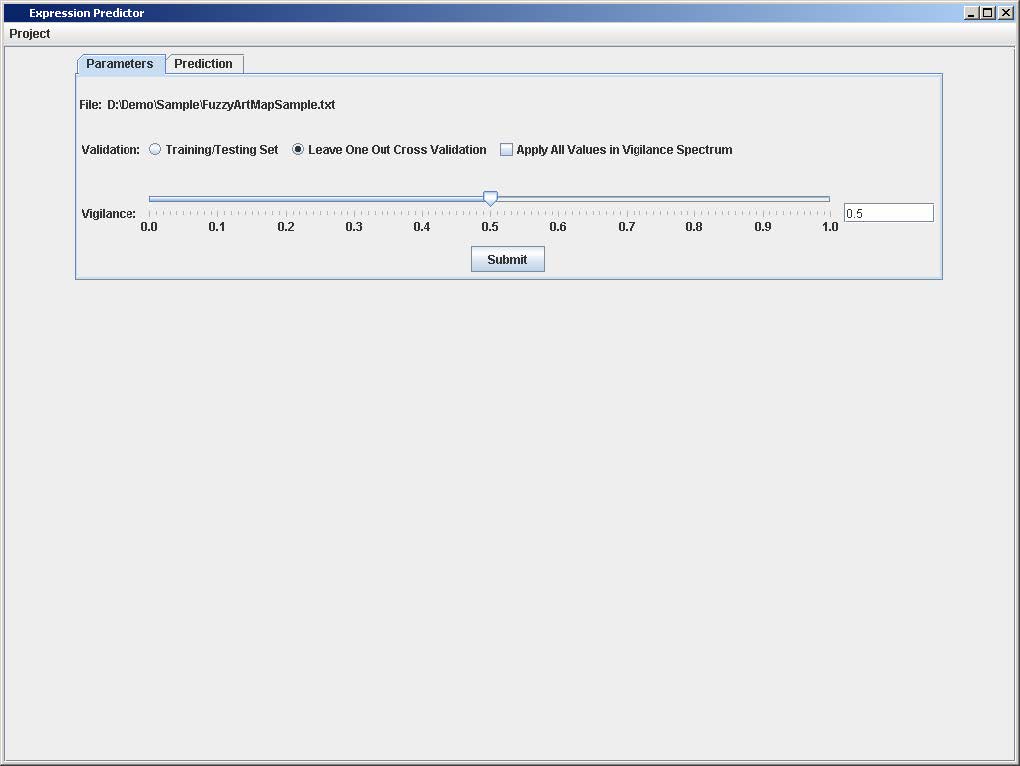
3. Click on the Submit button
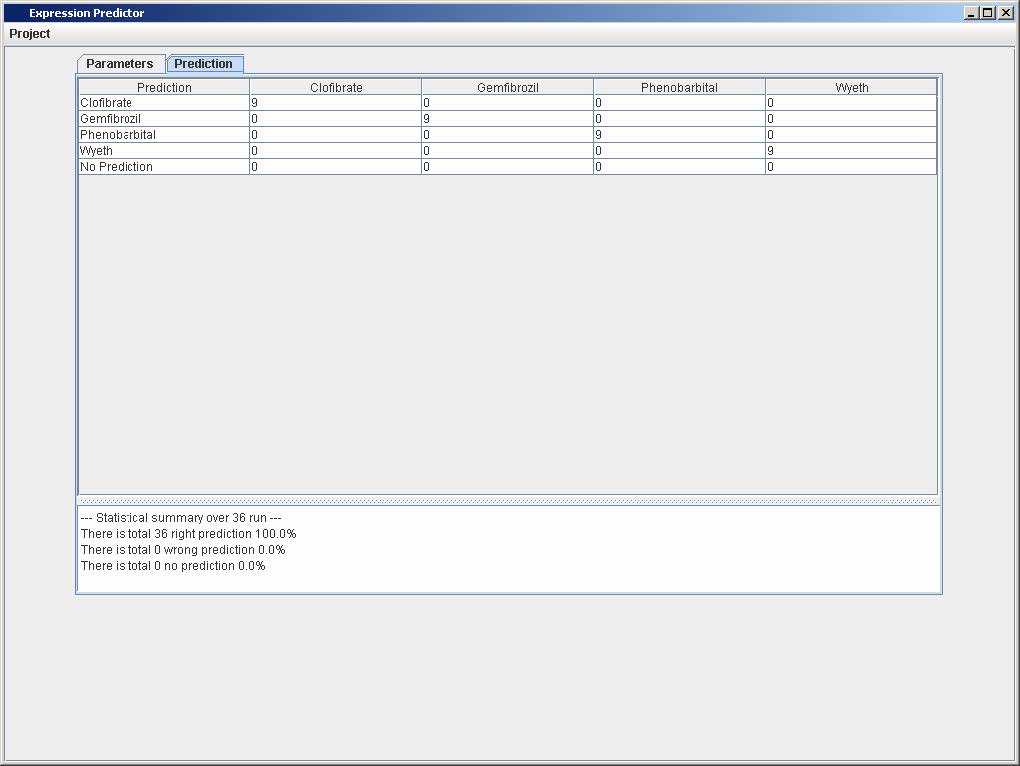
4. Click on the Prediction Tab to view the confusion matrix
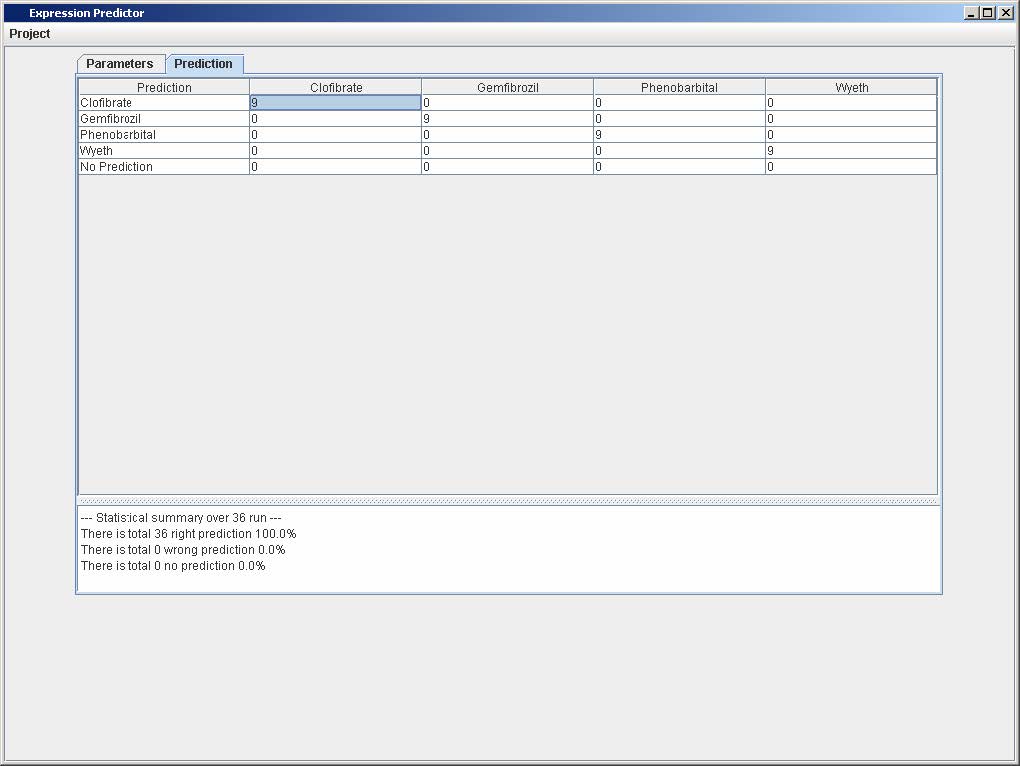
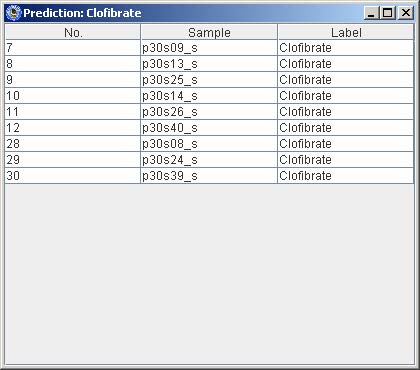
5. Click on one of the numbers in the confusion matrix to view the list of samples that corresponds to the prediction in the selected cell from the matrix.
2.2 Leave One Out Cross Validation over the Entire Vigilance Spectrum
1. Repeat steps 1 and 2 from Section 2.1
2. Click on the checkbox that says “Apply All Values in Vigilance Spectrum”
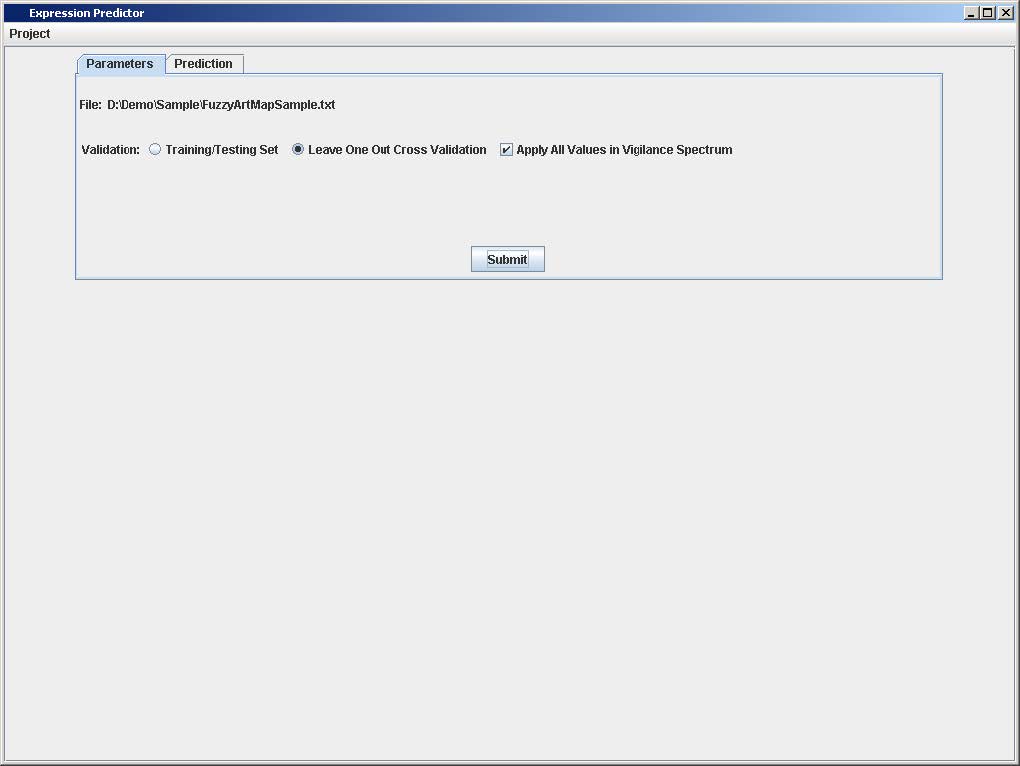
3. Repeat steps 3 Section 2.1
4. Click on Prediction Tab to view the prediction results using vigilance values from 0 to 1 with 0.01 increment at each cycle
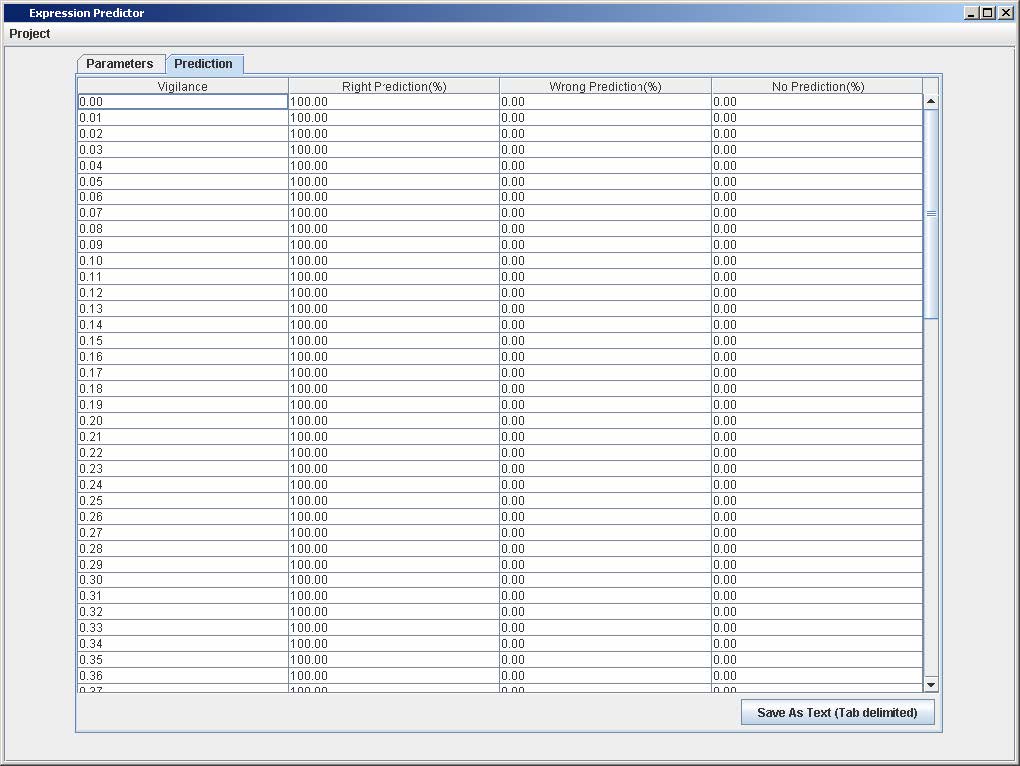
5. Repeat step 5 from Section 1.2 to save prediction as tab-delimited text file.